October 10, 2026
Remote Control Shortcuts and Start-up Channel in B Player
B Player is designed for the TV remote, and a few small settings can make it even quicker to use. This guide covers how to give your remote's coloured buttons new jobs, how to change channel while you watch, how to choose what B Player opens on, and where the help button is.
Quick answer
- Settings → Remote buttons: set buttons such as red, green, yellow, blue, Guide or Bookmark to actions like TV Guide, Favourites, Last channel, Search, Record, Channel list, Subtitles, Audio or Home.
- While watching a channel, press the number keys to jump to a channel number, or up/down to change channel.
- Settings → Start-up: open on Home, the last channel you watched, or a chosen channel.
- The help (?) button in the top bar shows WhatsApp / live chat contacts and your device code.
Map your remote buttons
Many remotes have coloured buttons or extra keys that do nothing in most apps. In B Player you can give them a job.
- Select the Settings icon in the top bar.
- In the left menu, choose Remote buttons.
- Pick the button you want to set, for example red, green, yellow, blue, Guide or Bookmark.
- Choose the action it should perform.
Actions you can choose from:
- TV Guide: open the programme grid.
- Favourites: jump straight to your favourite channels.
- Last channel: flip back to the channel you were just watching.
- Search: search channels, movies and series.
- Record: start recording the live channel.
- Channel list: show the list of channels while you watch.
- Subtitles: open subtitle options.
- Audio: choose the audio language.
- Home: go back to the Home screen.
Which buttons you have depends on your remote. If yours has no coloured buttons, the regular navigation still works the same way.
Ideas for button setups
- Red → Favourites, Green → TV Guide, Yellow → Last channel, Blue → Search.
- If you watch a lot of foreign-language movies, put Subtitles and Audio on two buttons.
- If you record a lot, set one button to Record. Remember that a recording uses one of your plan's screens.
Change channels while you watch
You don't need to leave the player to change channel.
- Number keys: while watching a channel, type the channel number on your remote and B Player jumps to it.
- Up / down: press up or down to go to the next or previous channel.
- Channel list: open the channel list in the player to choose from the list. You can also put it on a remote button.
Tip: set a button to Last channel to switch quickly between two channels.
Choose what B Player opens on
By default, B Player opens on the Home screen. If you always start with the same channel, change it:
- Open Settings.
- Choose Start-up.
- Pick one of the options:
- Home: the normal start screen.
- Last channel: carry on with whatever you were watching last.
- Chosen channel: always start on a channel you select.
"Last channel" suits people who like to pick up where they left off. "Chosen channel" is great if the first thing you want every morning is the same channel.
The help (?) button
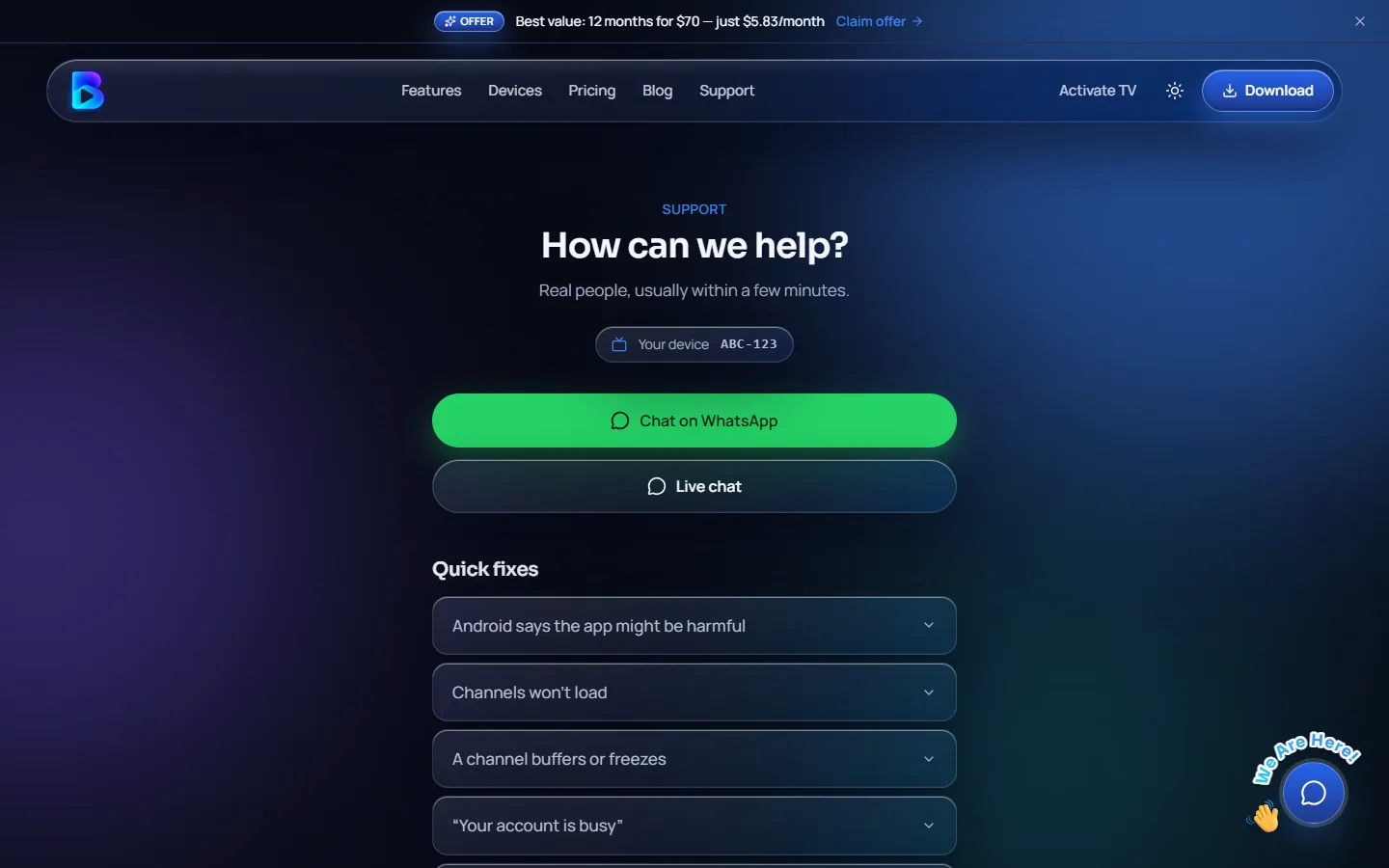
Stuck on something? Select the help (?) button in the top bar. It opens the help screen with:
- WhatsApp and live chat contacts for our support team.
- Your device code, which our team uses to find your account quickly.
You'll find more in Settings → Help & support: WhatsApp, email, the website, and a QR code that opens our help page on your phone.
More quick tips
- Open the TV Guide from the top bar to see what's on now and next.
- To change what your remote buttons do later, just go back to Settings → Remote buttons and pick a new action.
- If the channel list looks out of date, use Settings → Reload content.
New to B Player? Install B Player on your Fire TV, Android TV, Google TV or Android phone.
Need help?
Press the ? button in the app, or message us on WhatsApp or live chat. We usually reply within a few minutes. You can also visit /help.