
October 10, 2026
How to Record Live TV with B Player

B Player can record live TV straight onto your device, so you can watch it whenever suits you. You can start a recording with one button while you're watching, or plan ahead from the TV Guide. This guide covers both, plus where your recordings live and a few things worth knowing before you start.
Quick answer
- Record now: while watching a live channel, press the Record button in the player. It records 60 minutes.
- Record later: in the TV Guide, press OK on a future programme and choose Record. It starts 1 minute early and ends 2 minutes late.
- Watch recordings: go to My List → Recordings.
- Remember: a recording uses one of your plan's screens.
Option 1: Record what you're watching now
- Open Live TV and start the channel you want.
- Bring up the player controls.
- Select Record.
- B Player records the next 60 minutes of that channel.
Tip: you can set a coloured or extra button on your remote to start a recording. Go to Settings → Remote buttons and choose Record as the action.
Option 2: Schedule a recording from the TV Guide
This is best when you know a programme is coming up later.
- Select TV Guide in the top bar.
- Find the channel and move Right to the programme you want.
- Press OK. A menu opens: Remind me · Record · Watch channel · Close.
- Choose Record.
Scheduled recordings start 1 minute early and end 2 minutes late, so you're less likely to miss the start or the ending.
What happens while it records
- Recordings run in the background, so you can keep using the app.
- You'll see a notification with a Stop button while a recording is running.
- Several recordings can run at once – as long as you have enough screens on your plan (see below).
Where to find your recordings
Go to My List → Recordings. It is split into four sections:
- Recording now – recordings in progress. You can Stop them here.
- Scheduled – recordings planned from the TV Guide. You can Cancel them here.
- Recorded – finished recordings, ready to Play or Delete.
- Failed – recordings that didn't complete.
The free space on your device is shown here too, so you can see when it's time to delete old recordings.
Important: recordings use a screen
Each plan has a number of screens at once – how many devices can watch at the same time. A recording uses one of those screens (connections).
- On a 1-screen plan (Monthly or 3 Months), you can't watch another channel and record at the same time.
- On a 2-screen plan (6 Months or 12 Months), you have one more screen to use alongside a recording.
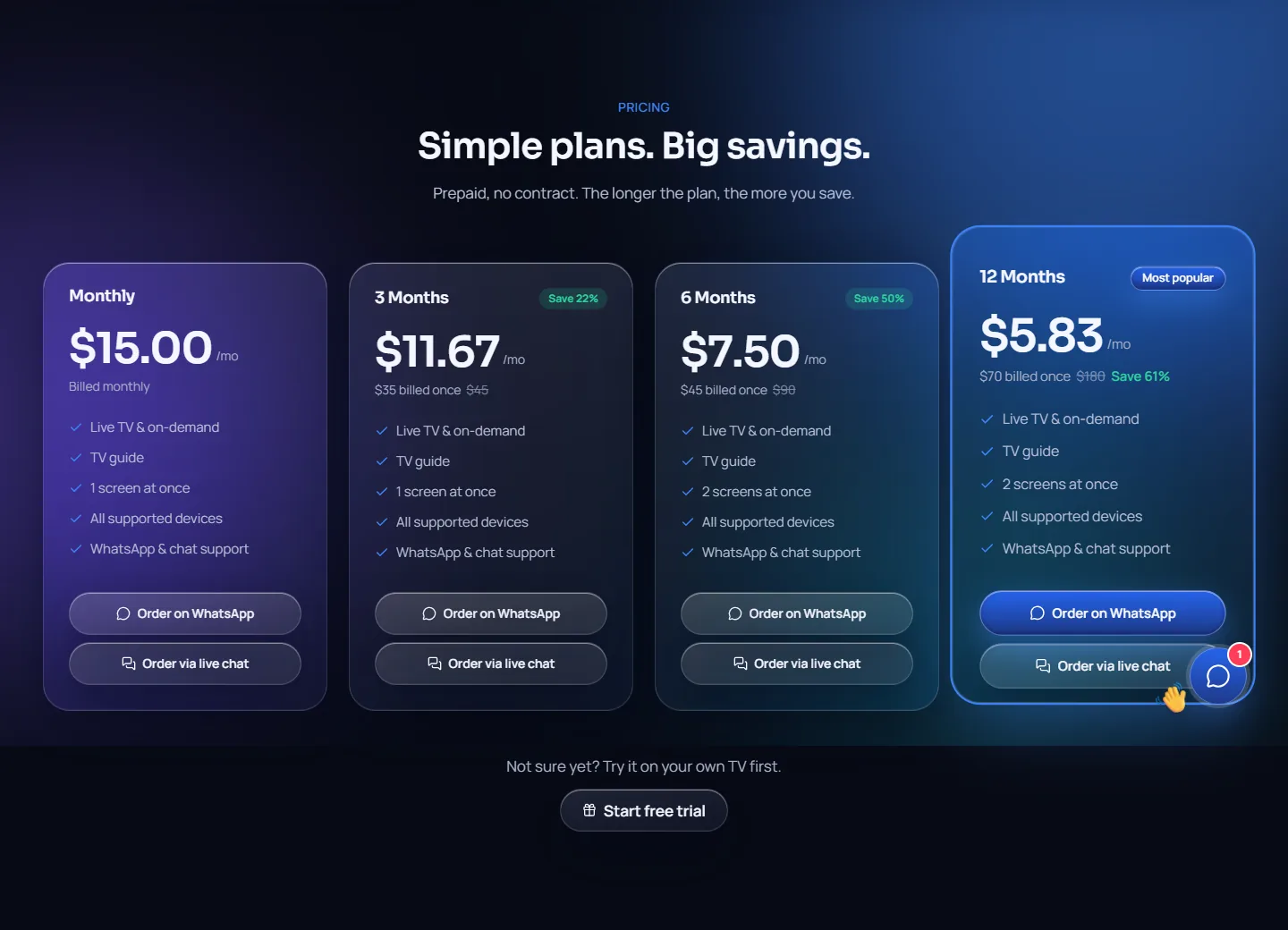
You can check how many are in use in Settings → Account, which shows connections in use (for example "1 of 2"). If you ever see "Your account is busy", all your screens are in use – including recordings. Stop watching on another device (or stop a recording), wait a few seconds and try again.
Storage: where recordings are kept
Recordings are saved on your device. Two things to remember:
- Keep an eye on the free space shown in My List → Recordings, and delete recordings you've finished with.
- If you uninstall B Player, your recordings are deleted with it.
Android 12 and newer: allow "Alarms & reminders"
On Android 12 or newer, Android may ask whether B Player can use "Alarms & reminders". Please allow it – this lets scheduled recordings start on time.
Recording or Pause live TV?
They do different jobs:
- Recording saves a programme to watch later.
- Pause live TV (beta) lets you pause and rewind the channel you're watching, then press LIVE to jump back. It's off by default – turn it on in Settings → Playback. It stores up to about 1 GB on the device while you watch. If a channel doesn't start with it on, turn it off.
Summary
Press Record in the player to record 60 minutes now, or choose Record on a future programme in the TV Guide. Watch, stop, cancel and delete everything in My List → Recordings. Recordings use one of your plan's screens and are stored on your device. Want more screens? See our plans.
Need help? Message our team on WhatsApp or live chat – real people usually reply within a few minutes. Or visit /help.