October 10, 2026
How to Install B Player on Amazon Fire TV and Fire TV Stick
Got an Amazon Fire TV or Fire TV Stick? Good news: B Player runs on it, and you can have it installed in a few minutes using nothing but your remote. This guide walks you through every step, from getting the free Downloader app to opening B Player for the first time.
Quick answer
Install the free Downloader app from your Fire TV's app store, open it, type the Downloader code 2134426 in the address box and press Go. When the B Player app has downloaded, select Install, then open the app. If your Fire TV asks, allow Downloader to install unknown apps.
What you need before you start
- An Amazon Fire TV or Fire TV Stick, connected to the internet.
- Your remote.
- A few minutes of time.
That is it. You do not need a computer, a cable or a phone for the install itself.
Step 1: Get the Downloader app
Downloader is a free app that lets your Fire TV download other apps from a short code. You only need to install it once.
- On your Fire TV home screen, open the app store or search.
- Look for Downloader.
- Select it and choose to download or get it.
- Wait for it to finish installing.
Step 2: Allow Downloader to install apps
Fire TV is careful about apps that do not come from its own store, so the first time you use Downloader it may ask for permission. If you see that message, or if the install is blocked later, turn the setting on like this:
- Go to Settings on your Fire TV.
- Open My Fire TV.
- Open Developer options.
- Select Install unknown apps.
- Find Downloader in the list and switch it on.
You only need to do this once. After that, Downloader can install B Player and its updates without asking again.
Step 3: Download B Player with code 2134426
- Open Downloader.
- Select the address box at the top.
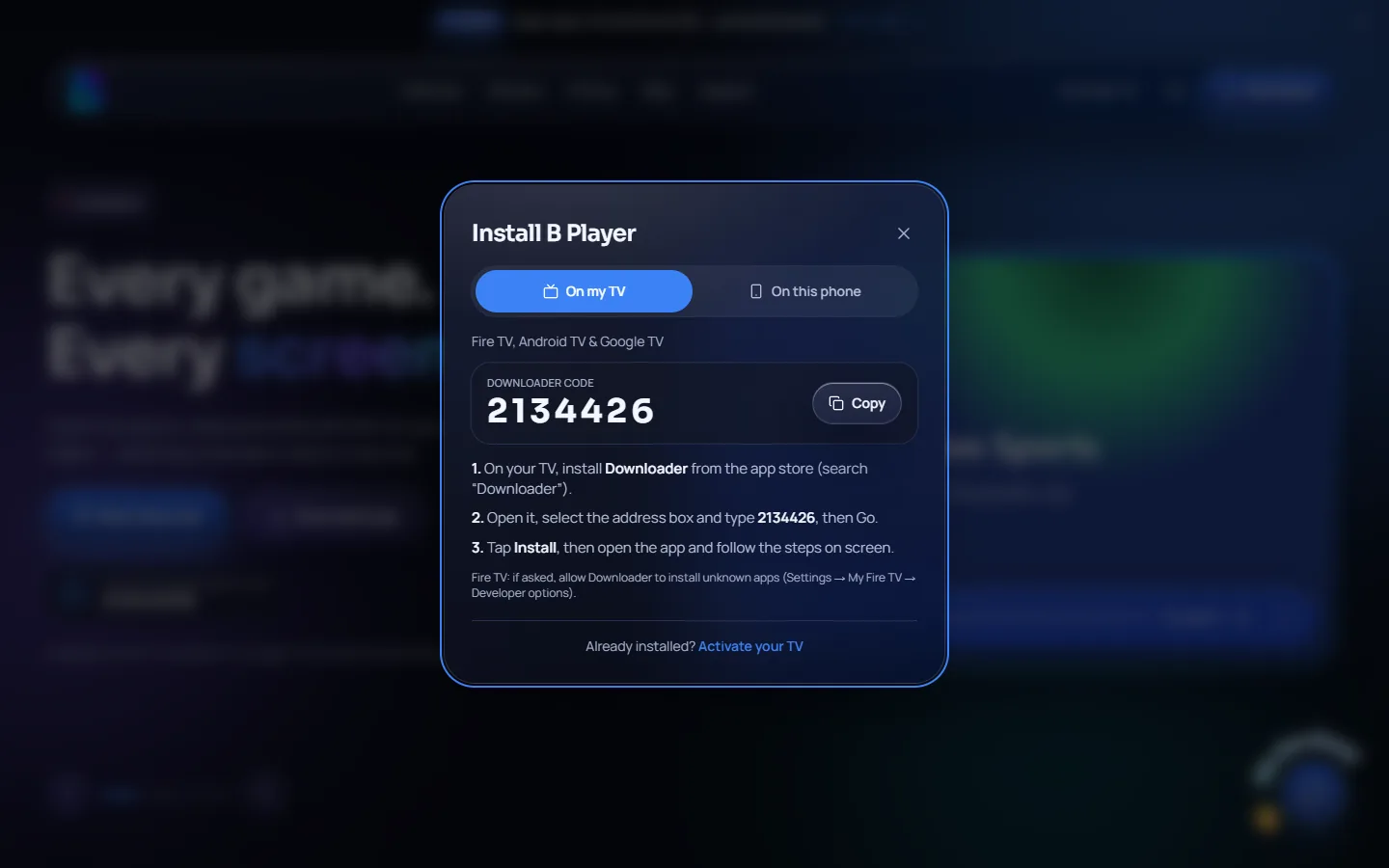
- Using the on-screen keyboard, type the code 2134426.
- Press Go.
- Wait while the B Player app downloads. It only takes a moment on a good connection.
Tip: the same code is shown on the B Player website. Every Download button there opens an install popup, and the On my TV tab shows the Downloader code with three short steps and a Copy button. You can open it directly here: install popup.
Step 4: Install and open B Player
- When the download finishes, an install screen appears. Select Install.
- Wait a moment for the install to complete.
- Select Open to start B Player, or find it later with your other apps.
Please only install B Player from the B Player website or with Downloader code 2134426. That way you always get the real app.
What you see the first time you open it
When B Player opens for the first time, it shows a short device code (something like ABC-123) and a QR code. This code is how your TV gets linked to your plan.
To start watching:
- Choose a plan on the website's plans section.
- Send your device code and the plan you picked to support on WhatsApp or live chat.
- Once payment is confirmed, your TV unlocks by itself. You do not need to restart anything.
Want to try first? A free trial is available. Tap "Start free trial" on the website, which opens WhatsApp or live chat, and support will set up a trial on your device. You can also check your status any time on the activate page.
Keeping B Player up to date
You do not need to repeat these steps to get new versions. B Player updates itself: when a new version is out, the app shows an update prompt. Just select Update.
If something does not go as planned
- The install is blocked: go back to Step 2 and make sure Install unknown apps is switched on for Downloader.
- The code is shown and the app will not unlock: send the code on WhatsApp or live chat. Once your plan is active, the screen unlocks by itself.
- Channels will not load: open the app again, as it re-checks your line, then go to Settings → Reload content. If it still fails, message support with the code on your screen.
- Playback stutters: for the best picture, aim for at least 15 Mbps for HD and 25 Mbps for the best quality. A wired connection or 5 GHz Wi-Fi works best.
Quick recap
- Install Downloader from the Fire TV app store.
- Allow it under Settings → My Fire TV → Developer options → Install unknown apps.
- Type 2134426 in Downloader and press Go.
- Select Install, then open B Player.
- Send your device code with your plan, or ask for a free trial.
Need help?
Real people are ready to help on WhatsApp and live chat, usually within a few minutes. Reach them from the website or the help page.