October 10, 2026
How to Install B Player on Android TV and Google TV
If your TV or streaming box runs Android TV or Google TV, you can install B Player straight from the couch with your remote. This guide covers the install, the first screen you will see, and a few smart things to set up once you are in.
Quick answer
Install the free Downloader app from your TV's app store, open it, type the code 2134426 in the address box and press Go. When B Player has downloaded, select Install, then open it. Send the device code shown on screen with your plan (or ask for a free trial), and the app unlocks by itself.
Before you start
- An Android TV or Google TV device that is connected to the internet.
- Your remote.
- A few minutes.
B Player also works on Amazon Fire TV and on Android phones and tablets, so you can use the same plan on the devices you already have. It is not available for iPhone or iPad yet.
Step 1: Install Downloader
Downloader is a free app that fetches other apps from a short code, so you do not have to type a long web address with your remote.
- Open the app store on your TV.
- Search for Downloader.
- Select it and install it.
- Wait for the install to finish.
If your TV asks whether Downloader may install apps, allow it. Android TV and Google TV ask this for apps that come from outside the store.
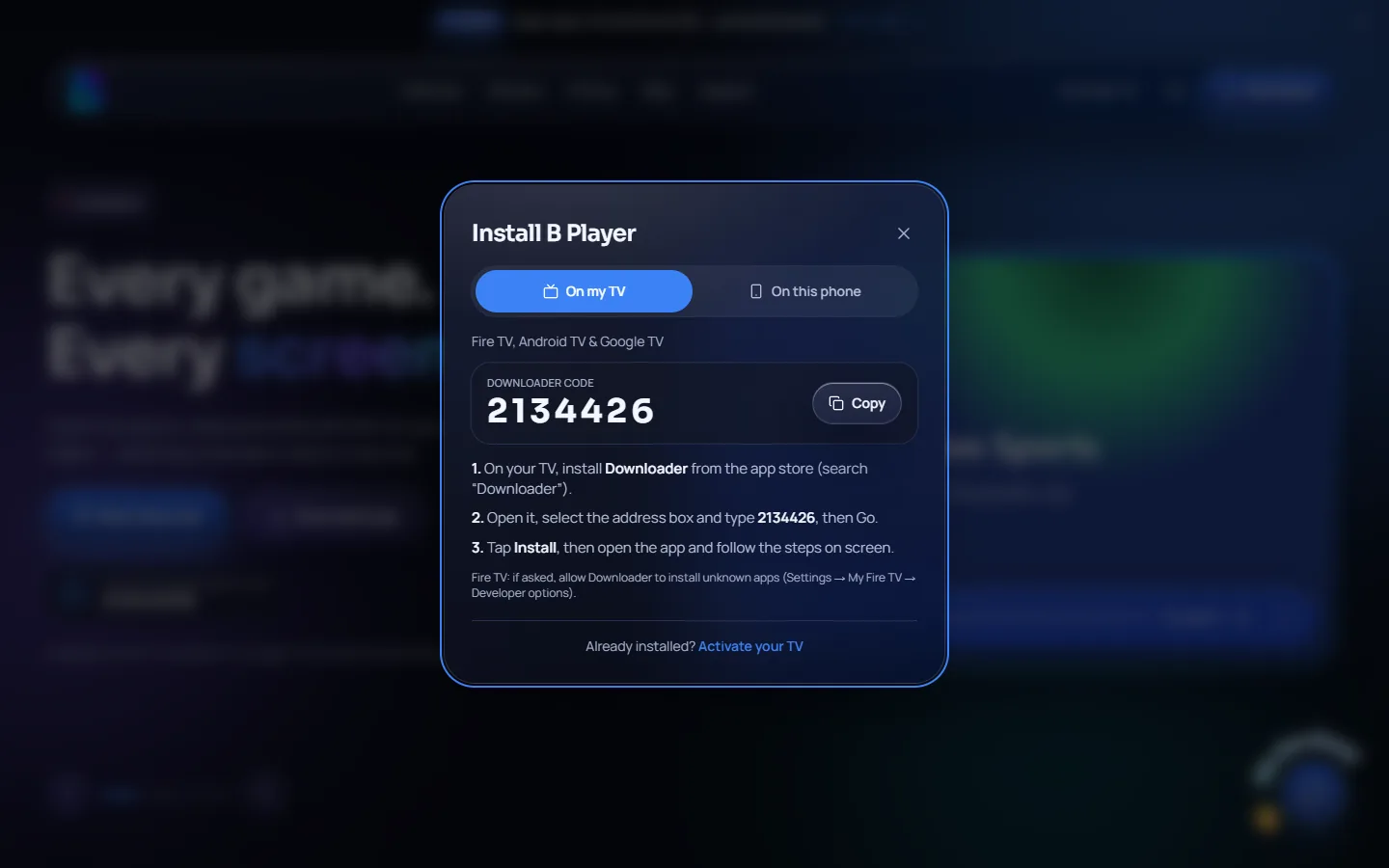
Step 2: Download B Player with code 2134426
- Open Downloader.
- Select the address box.
- Type 2134426.
- Press Go.
- Wait while the B Player app downloads.
You can always find this code on the B Player website. Any Download button opens an install popup, and the On my TV tab shows the code, three steps and a Copy button. Open it directly: install popup.
Step 3: Install and open the app
- When the download completes, select Install.
- If your TV asks for permission to install from Downloader, allow it and try again.
- When the install is done, select Open.
For your safety, only install B Player from the B Player website or with Downloader code 2134426.
What to do after the install
Activate with your device code
The first time B Player opens, it shows a short device code (like ABC-123) and a QR code.
- Pick a plan from the plans section. All plans are prepaid, with no contract and no hidden fees.
- Send your device code and chosen plan to support on WhatsApp or live chat.
- When payment is confirmed, the TV unlocks by itself. No restart needed.
Not ready to choose a plan? Tap "Start free trial" on the website. It opens WhatsApp or live chat, and support sets up a free trial on your device. You can check your status on the activate page.
Pick who is watching
B Player has a "Who's watching?" screen with several profiles and avatars. Each profile keeps its own favourites, history, groups, watched marks and hidden categories, so everyone in the home gets their own space.
Tidy up categories
In Settings → Category preference you can switch off Live, Movies or Series categories you never watch. This is per profile, and there are Show all and Hide all buttons to make it quick.
Choose how the app starts
In Settings → Start-up you can open B Player on Home, on the last channel you watched, or on a channel you choose.
Set up your remote buttons
Many Android TV and Google TV remotes have coloured or extra buttons. In Settings → Remote buttons you can map buttons like red, green, yellow, blue or Guide to actions such as TV Guide, Favourites, Last channel, Search or Record.
Add a PIN if you have kids
In Settings → Parental control you can set a 4-digit PIN. Adult categories then ask for the PIN before playing.
Updates happen on their own
You do not need Downloader again for new versions. When an update is out, B Player shows an update prompt. Select Update and you are done.
Troubleshooting
- The install will not start: make sure Downloader is allowed to install apps, then press Install again.
- Channels will not load: reopen the app, then go to Settings → Reload content. Still stuck? Message support with the code on your screen.
- A channel buffers: try another channel first. If all of them buffer, restart your router and TV box, use wired or 5 GHz Wi-Fi, and try Settings → Playback → Buffer → Fewer stalls.
Need help?
Our team is on WhatsApp and live chat, usually within a few minutes. Find both on the website and the help page.