October 10, 2026
How to Install B Player on an Android Phone or Tablet
B Player is not only for the big screen. You can also install it on an Android phone or tablet and take live TV, the TV guide, movies and series with you. The install takes a couple of minutes from your phone's browser. Along the way you may see a warning from Google Play Protect, so we explain that calmly below too.
Quick answer
Open the B Player website on your phone, tap Download, choose the On this phone tab, then tap Download B Player. Open the downloaded file and tap Install. If Play Protect shows a warning, tap More details, then Install anyway.
What you need
- An Android phone or tablet with an internet connection.
- A web browser on that device.
B Player is not available for iPhone or iPad yet.
Step-by-step: install on your phone or tablet
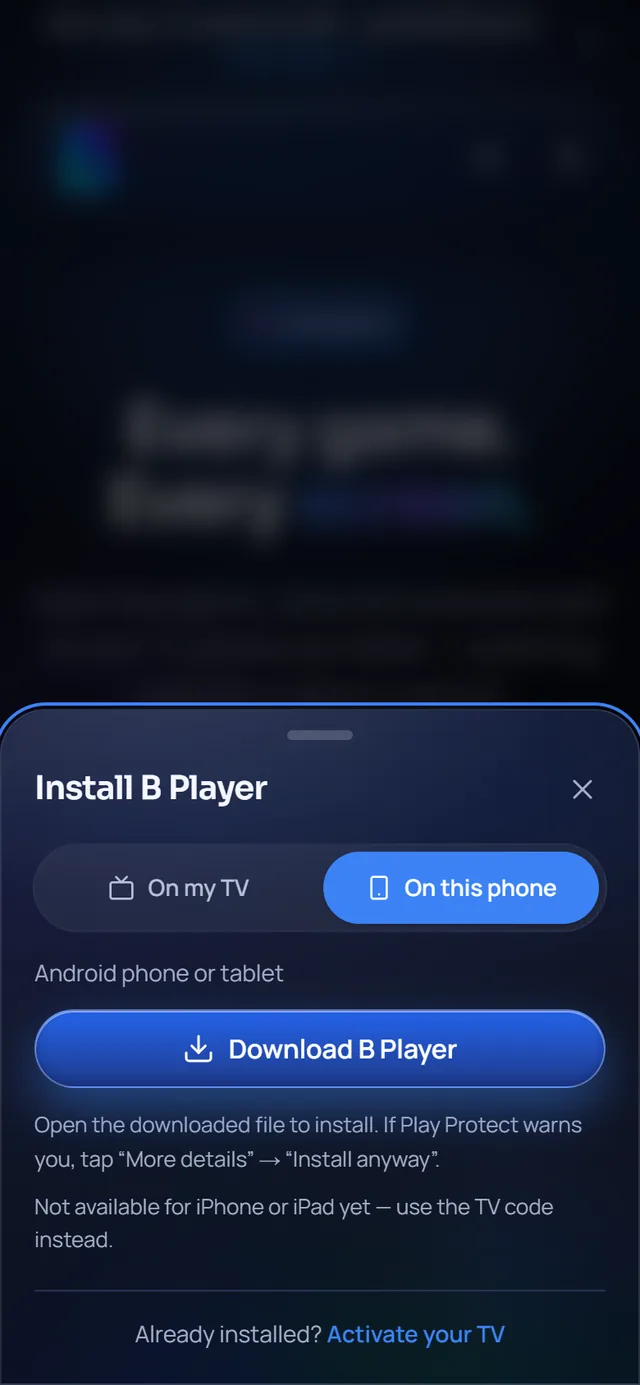
- On your phone, open the B Player website. You can go straight to the install popup here: install B Player.
- Tap Download. A popup opens with two tabs: On my TV and On this phone.
- Tap the On this phone tab.
- Tap Download B Player.
- When the download finishes, open the downloaded file. You can usually tap it in the browser's download message or find it in your downloads.
- Tap Install.
- When it is done, tap Open.
If your phone asks whether your browser is allowed to install apps, allow it and then tap the downloaded file again.
About the Play Protect warning
During the install, some phones show a message from Google Play Protect saying the app "might be harmful". This can look alarming, so here is what is going on.
Play Protect is a safety feature on Android. It warns about apps that are installed from outside the Play Store and that it does not know yet. B Player is installed from its own website, so Play Protect may simply not recognise it. The warning is a general caution, not a sign that something is wrong with your phone.
To continue:
- Tap More details on the warning.
- Tap Install anyway.
- Let the install finish, then open B Player.
Stay safe
The warning is a good reminder to be careful with where your apps come from. Only install B Player from:
- the B Player website, or
- the Downloader code 2134426 (for TVs).
If you got an app file from anywhere else, do not install it. Download a fresh copy from the website instead.
First launch: your device code
When you open B Player for the first time, it shows a short device code (like ABC-123) and a QR code. This code links your phone to your plan.
- Choose a plan in the plans section.
- Send your device code and plan to support on WhatsApp or live chat.
- Once payment is confirmed, the app unlocks by itself. No restart needed.
Prefer to try it first? Tap "Start free trial" on the website. It opens WhatsApp or live chat, and support sets up a free trial on your device. You can check your status on the activate page.
Using one plan on your phone and TV
Each plan includes all supported devices: Amazon Fire TV, Android TV, Google TV, and Android phones and tablets. What changes between plans is screens at once, meaning how many devices can watch at the same time. The Monthly and 3 Months plans allow 1 screen, while the 6 Months and 12 Months plans allow 2.
If you ever see "Your account is busy", all your plan's screens are in use, including any recordings. Stop watching on another device, wait a few seconds, and try again.
Keeping the app updated
You only need to install once. When a new version is out, B Player shows an update prompt. Tap Update. If Play Protect shows its warning again during an update, the same steps apply: More details, then Install anyway.
Troubleshooting
- Nothing happens when I tap the file: open your phone's downloads and tap the B Player file there, and allow your browser to install apps if asked.
- The code is shown and will not unlock: send the code on WhatsApp or live chat. When your plan is active, the screen unlocks by itself.
- Channels will not load: reopen the app, then go to Settings → Reload content. If it still fails, message support with your code.
Need help?
Real people are on WhatsApp and live chat, usually within a few minutes. Find them on the website or the help page.