
October 10, 2026
How to Fix Buffering and Freezing in B Player
Nothing spoils a good evening on the sofa like a picture that keeps stopping to load. The good news is that most buffering and freezing can be fixed in a few minutes, usually without calling anyone. This guide walks you through the checks in the order that works best.
Quick answer
- Try another channel. If only one channel buffers, the problem is that channel, not your setup.
- If everything buffers, restart your router and your TV box.
- Use a wired connection or 5 GHz Wi-Fi, and aim for at least 15 Mbps (25 Mbps for the best quality).
- In B Player, go to Settings → Playback → Buffer and choose Fewer stalls.
- Green or frozen picture? Turn on Prefer software decoding in the same Playback menu.
Still stuck? Message support on WhatsApp or live chat.
Step 1: Try another channel first
Before changing anything, find out how big the problem is.
- Press Back to leave the channel that is buffering.
- Open a different channel in Live TV.
- Watch it for a minute or two.
If the second channel plays smoothly, your internet and TV are fine. The issue is with that one channel, and it may clear up on its own. If every channel buffers, the cause is most likely your connection at home, so carry on with the steps below.
Step 2: Check your internet speed
Streaming TV needs a steady connection. For B Player we recommend:
- At least 15 Mbps for HD.
- 25 Mbps for the best quality.
You can check your speed with any internet speed test on a phone or computer connected to the same network as your TV. Remember that other people at home streaming, gaming or downloading at the same time share that speed. If your result is close to or below 15 Mbps, buffering is much more likely, especially in the evening when networks are busy.
Step 3: Restart your router and TV box
This simple step fixes a surprising number of problems.
- Unplug your router from the power.
- Unplug your TV box or stick (for example, your Fire TV Stick), or switch your TV off at the wall.
- Wait a little while before plugging anything back in.
- Plug the router back in and wait until its lights settle.
- Plug your TV device back in and open B Player again.
Opening the app again also makes it re-check your line, so it is a good fresh start.
Step 4: Use a wired connection or 5 GHz Wi-Fi
How your TV connects matters as much as how fast your internet is.
- Wired Ethernet is the most reliable option. If your TV or box has a network port and your router is nearby, a cable is the best fix for buffering.
- 5 GHz Wi-Fi works best if you use wireless. Many routers offer two networks, often with "5G" or "5GHz" in the name. Connect your TV to that one in your TV's network settings.
- Keep the router out of cupboards and away from thick walls, and as close to the TV as you can.
Step 5: Set the Buffer to "Fewer stalls"
B Player has a setting that changes how much video it loads ahead.
- Open Settings (the gear icon in the top bar).
- Choose Playback.
- Select Buffer.
- Pick Fewer stalls.
The options are Auto, Fast start and Fewer stalls. "Fast start" gets the picture going quickly, while "Fewer stalls" focuses on keeping playback smooth once it starts. If your connection is a little uneven, "Fewer stalls" is usually the better choice.
Step 6: Green or frozen picture? Try software decoding
Sometimes the problem isn't buffering at all. If a channel shows a green picture, or the picture freezes while the sound carries on, the TV may be having trouble decoding that stream.
- Go to Settings → Playback.
- Turn on Prefer software decoding.
- Go back and play the channel again.
If it makes no difference, you can switch it off again the same way.
Using Pause live TV? Check this too
Pause live TV (beta) is off by default. If you have turned it on in Settings → Playback and a channel doesn't start, turn it off and try again. It stores up to about 1 GB on your device while you watch, so it works best when your device has some free space.
When to contact support
If you have tried every step above and still see buffering on all channels, our team is happy to take a look. Have your device code ready. You can find it in Settings → Account, or by pressing the help (?) button in the top bar, which also shows WhatsApp and live chat options.
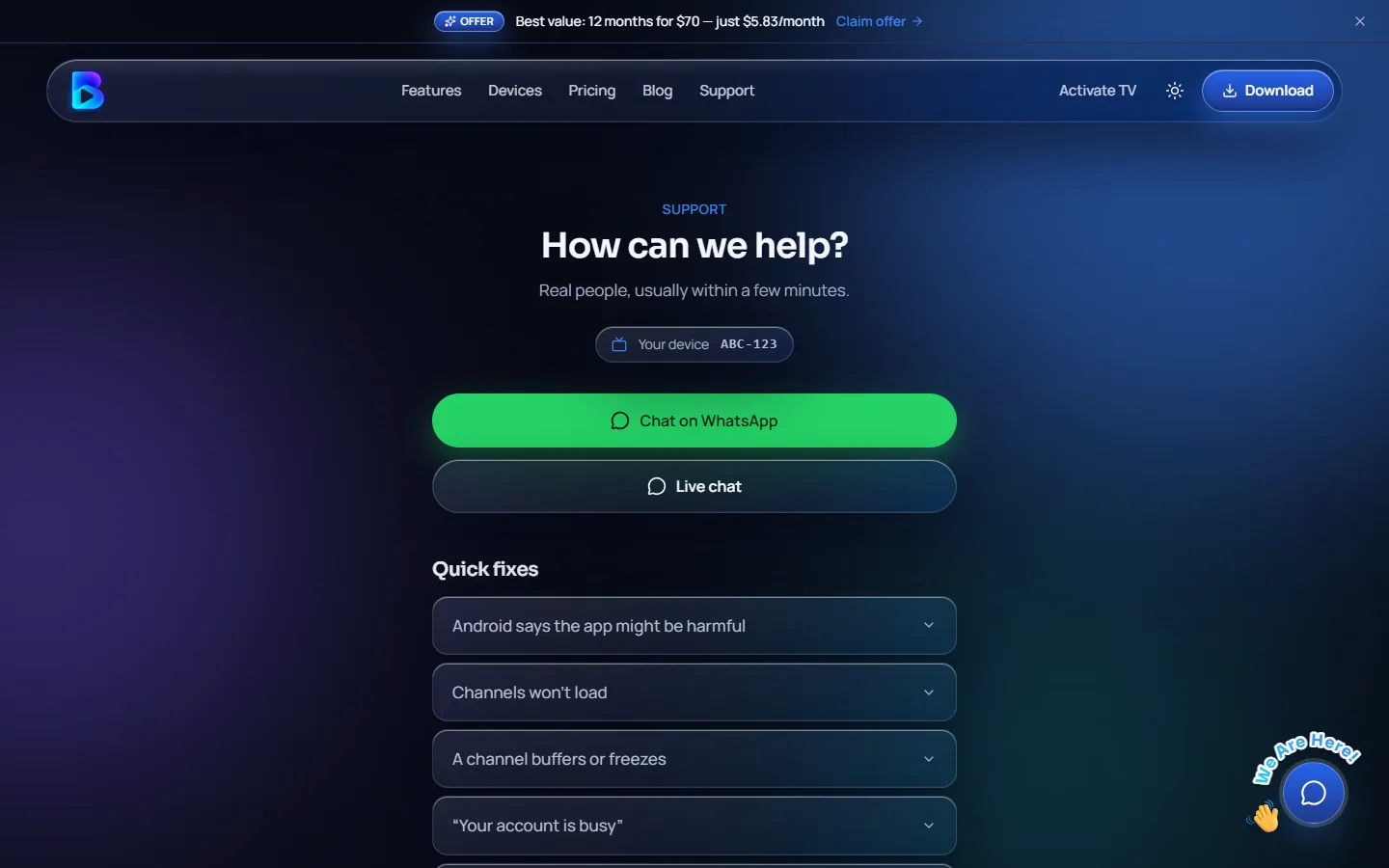
Need help?
Message a real person on WhatsApp or live chat. We usually reply within a few minutes. You can also visit /help for quick fixes and contact buttons.