October 10, 2026
B Player Troubleshooting Guide: Quick Fixes for Common Problems
Most problems with B Player have a simple fix that takes less than a minute. This guide covers the questions our support team hears most often, with clear steps you can follow with your remote. If none of them work, you will find out exactly what to send us so we can help quickly.
Quick answer
- Channels won't load: close and open the app again, then go to Settings → Reload content.
- "Your account is busy": all your plan's screens are in use. Stop watching on another device, wait a few seconds and try again.
- Code won't unlock: send the code on your screen to us on WhatsApp or live chat. The screen unlocks by itself once your plan is active.
- Play Protect warning: tap More details → Install anyway.
- Update prompt: tap Update.
Channels won't load
If the channel list is empty or channels won't open, try this:
- Close B Player and open it again. When it starts, the app re-checks your line.
- If channels still don't appear, open Settings (the gear icon in the top bar).
- Choose Reload content. This downloads the channel and movie lists again.
- Wait for it to finish, then go back to Live TV.
Still failing? Message support with the code on your screen, and we will check your line for you.
"Your account is busy"
This message means every screen on your plan is already in use. Each plan allows a set number of devices to watch at the same time:
- Monthly and 3 Months: 1 screen at once.
- 6 Months and 12 Months: 2 screens at once.
Remember that a recording also uses a screen. On a 1-screen plan, you can't record one channel and watch another at the same time.
To fix it:
- Stop watching on your other device (or stop any recording that is running).
- Wait a few seconds.
- Try again.
You can see how many connections are in use under Settings → Account, for example "1 of 2". If you often need more screens at once, have a look at the plans.
Your code is showing and won't unlock
When you first open B Player, it shows a short device code (something like ABC-123) and a QR code. The app stays on this screen until your plan is active.
- Send that code, together with the plan you would like, to us on WhatsApp or live chat.
- Once your payment is confirmed, we activate your device.
- The screen unlocks by itself. You don't need to restart anything.
You can also check your status on the activate page of the website. If you would like to try B Player first, ask for a free trial.
Play Protect warning when installing
On Android devices, you may see a message saying the app "might be harmful". This is Google Play Protect, which warns about apps installed from outside the Play Store that it doesn't know yet.
- Tap More details.
- Tap Install anyway.
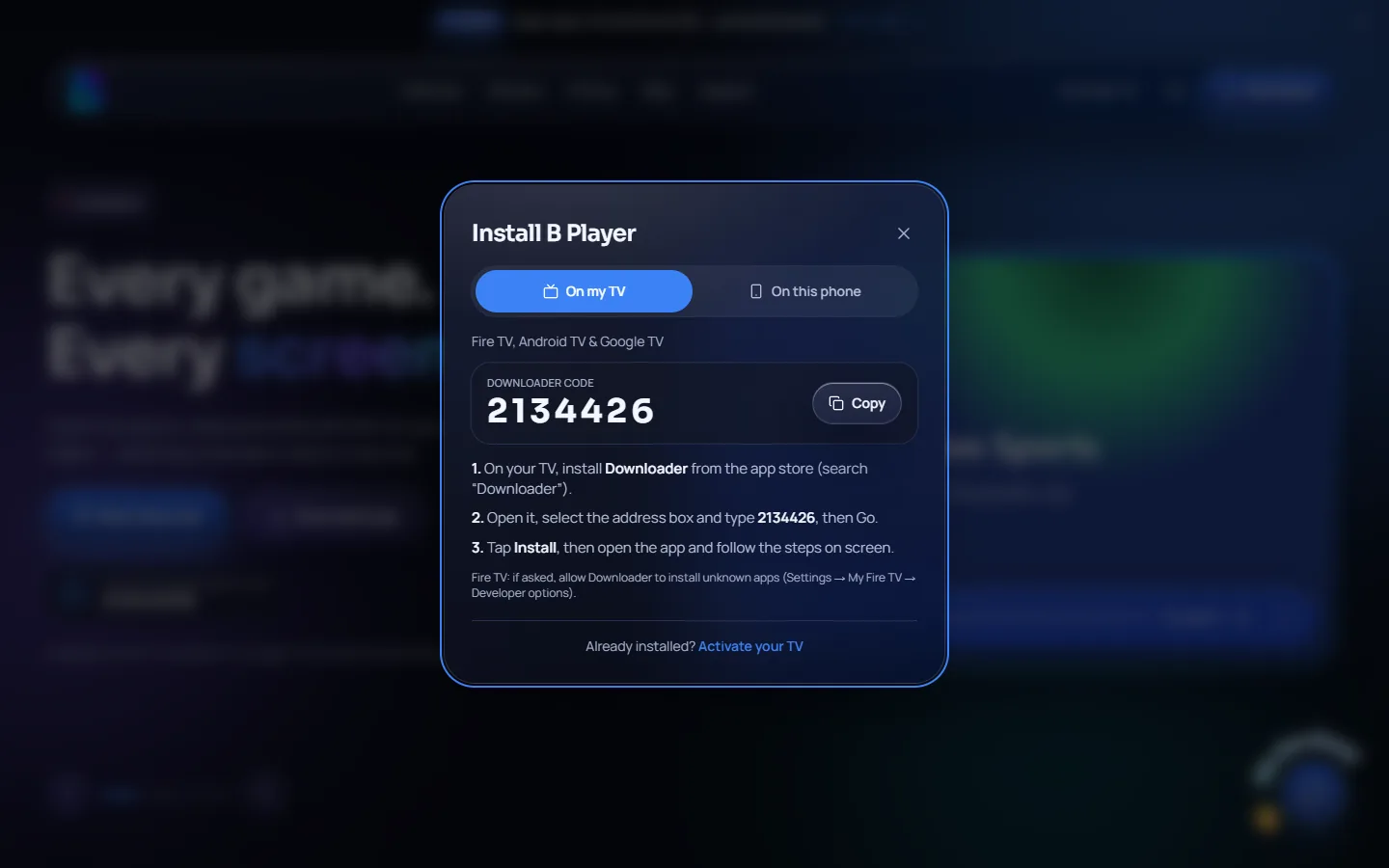
For your safety, only install B Player from the B Player website or with the Downloader code 2134426. If you need to install again, use the install page.
An update prompt appears
B Player updates itself. When a new version is available, the app shows an update prompt.
- Tap Update.
- Follow the steps on screen to install the new version.
- Open B Player again and carry on watching.
It is a good idea to accept updates when they appear, so you always have the latest fixes.
Other quick checks
- One channel buffers or freezes: try another channel first. If all channels buffer, restart your router and TV box, use wired or 5 GHz Wi-Fi, and try Settings → Playback → Buffer → Fewer stalls.
- Green or frozen picture: turn on Settings → Playback → Prefer software decoding.
- A channel won't start with Pause live TV on: turn Pause live TV (beta) off in Settings → Playback.
When to contact support
If you have tried the steps above and the problem is still there, contact us. To help us fix it quickly, please include:
- Your device code. You will find it in Settings → Account, or press the help (?) button in the top bar.
- A short description of what you see, for example the message on screen.
- The device you are watching on, such as a Fire TV Stick, Android TV or an Android phone.
Real people answer on WhatsApp and live chat, usually within a few minutes.
Need help?
Message us on WhatsApp or live chat, or visit /help for quick fixes and contact buttons.