October 10, 2026
Watch B Player on Every Screen in Your Home
B Player is made for the big screen, but it doesn't stop there. You can watch live TV, the TV guide, movies and series on your TV in the living room, a second TV in the bedroom, or an Android phone on the go. This guide explains which devices work today, how many can watch at once, and how to set up another TV.
Quick answer
- B Player works on Amazon Fire TV (including Fire TV Stick), Android TV, Google TV, and Android phones and tablets.
- It is not available on iPhone or iPad yet.
- Monthly and 3 Months plans allow 1 screen at once. 6 Months and 12 Months allow 2 screens at once.
- To add another TV, install the free Downloader app and enter the code 2134426.
Supported devices today
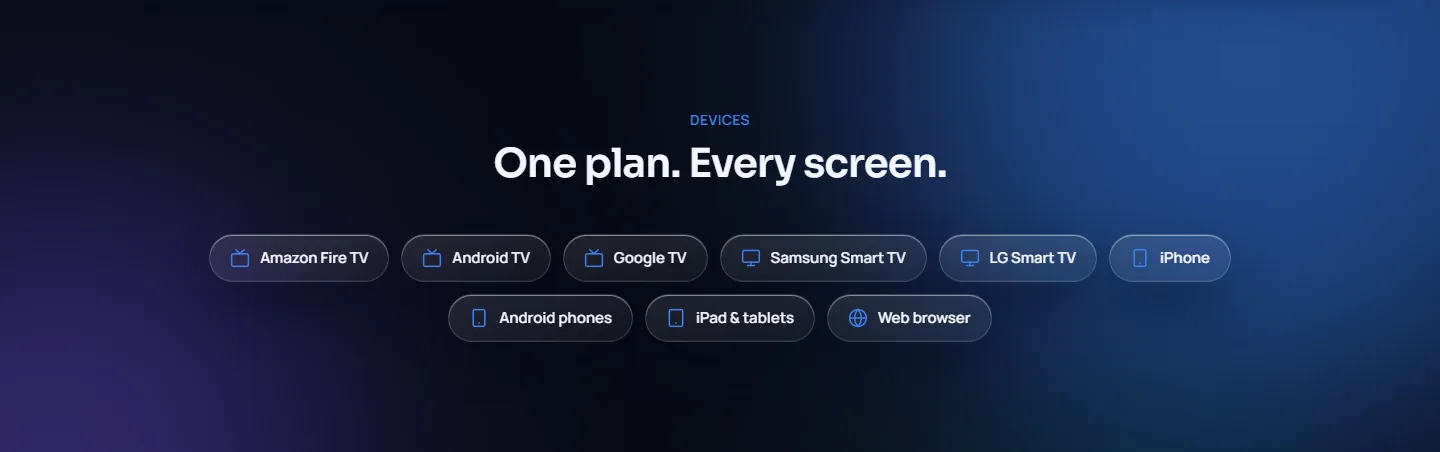
You can use B Player on:
- Amazon Fire TV, including the Fire TV Stick.
- Android TV.
- Google TV.
- Android phones and tablets.
B Player is not available for iPhone or iPad yet.
On a TV, everything is designed for your remote. The top bar gives you Home, Live TV, TV Guide, Movies, Series and My List, with Search and Settings close by. On an Android phone or tablet, you get the same B Player with your plan.
How many screens can watch at once?
Every plan works on all supported devices. What changes is how many of them can watch at the same time:
| Plan | Price | Per month | Screens at once |
|---|---|---|---|
| Monthly | $15 | $15.00 | 1 |
| 3 Months | $35 | $11.67 | 1 |
| 6 Months | $45 | $7.50 | 2 |
| 12 Months (most popular) | $70 | $5.83 | 2 |
So if you want the living room TV and the bedroom TV playing at the same time, choose a 6 Months or 12 Months plan. You can compare them in the plans section.
Remember: recordings use a screen
When B Player is recording a programme, that recording uses one of your plan's screens. On a 1-screen plan, you can't record one channel and watch another at the same time.
If every screen is in use, you will see "Your account is busy". Stop watching on another device, wait a few seconds and try again. To see how many are in use, open Settings → Account and look at connections in use, for example "1 of 2".
Installing B Player on a second TV
Adding B Player to another Fire TV, Android TV or Google TV takes just a few minutes.
- On the second TV, open the app store and install the free Downloader app.
- Open Downloader.
- In the address box, type the Downloader code 2134426.
- Select Go. The B Player app downloads.
- Select Install, then open the app.
On Fire TV: if you are asked, allow Downloader to install unknown apps. Go to Settings → My Fire TV → Developer options → Install unknown apps and turn it on for Downloader.
When B Player opens for the first time, it shows a short device code (like ABC-123) and a QR code. Send that code to support on WhatsApp or live chat. Once it's active, the screen unlocks by itself, no restart needed. You can also check your status on the activate page.
Installing on an Android phone or tablet
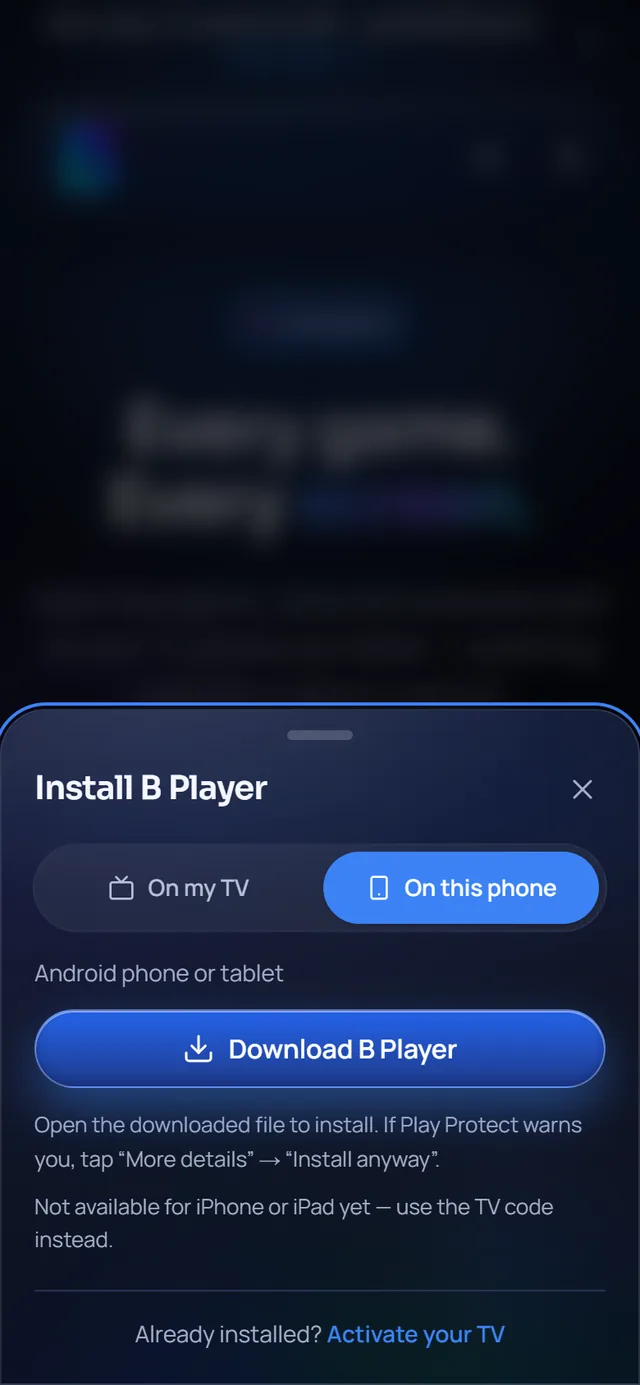
- Open the B Player website on your phone.
- Tap Download, then choose On this phone.
- Tap Download B Player.
- Open the downloaded file and tap Install.
If Google Play Protect says the app "might be harmful", tap More details → Install anyway. Play Protect warns about apps from outside the Play Store that it doesn't know yet. Only install B Player from the B Player website or with Downloader code 2134426.
You can jump straight to the install popup here: install B Player.
Tip for advanced users: your own TV guide
B Player already includes a TV guide. If you are an advanced user and have your own guide in XMLTV format, you can add it:
- Open Settings → TV guide source.
- Paste your XMLTV guide link.
- If the times look off, set a time offset between −12 and +12 hours.
- Select Load now.
To go back to normal, choose Remove. This is completely optional.
A few handy extras on every TV
- Profiles: each person can have their own profile with separate favourites, history and groups.
- Start-up: choose whether B Player opens on Home, the last channel you watched, or a chosen channel (Settings → Start-up).
- Updates: the app updates itself. When a new version is ready, tap Update on the prompt.
Need help?
Our team can help you set up another device. Message us on WhatsApp or live chat, or visit /help.